> For the complete documentation index, see [llms.txt](https://docs.nuclearplayer.com/nuclear/llms.txt). Markdown versions of documentation pages are available by appending `.md` to page URLs; this page is available as [Markdown](https://docs.nuclearplayer.com/nuclear/core-concepts/lyrics.md).
# Lyrics
How to display lyrics, sing along as your tracks play, and switch between lyrics sources
{% hint style="info" %}
To see lyrics, install at least one lyrics plugin from the plugin store, then click **Lyrics** in the left sidebar. Nuclear asks every lyrics plugin that you installed for lyrics, then shows the best result. If the lyrics are synced, Nuclear highlights each line when it's sung. You can click a line to jump to it.
{% endhint %}
The Lyrics view shows the lyrics of the current track. When the next track starts, the view loads the lyrics for that track.
The Lyrics view with word-synced lyrics
## Lyrics come from plugins
To see lyrics in Nuclear, you will need to install at least one lyrics plugin. You can install lyrics plugins from the plugin store, like any other plugin. For more information about plugins and the plugin store, see [Plugins and providers](/nuclear/core-concepts/plugins-and-providers.md).
You can install more than one lyrics plugin. When a track starts, Nuclear asks every lyrics plugin that you installed for the lyrics of that track. Each plugin returns its best match. Nuclear shows the best of these results. Nuclear prefers lyrics with more timing information, in this order:
1. Word-synced lyrics
2. Line-synced lyrics
3. Plain lyrics
The other results stay available. You can switch to them with the source picker in the toolbar. See [Switch to a different source](#switch-to-a-different-source).
The **Lyrics** section of the **Sources** view shows all the lyrics plugins that you installed. All lyrics plugins are active at the same time. Thus you don't choose a lyrics plugin in the **Sources** view.
If a plugin fails to load lyrics, Nuclear shows an error notification. Then it uses the results of the other plugins.
## Open the Lyrics view
Click **Lyrics** in the left sidebar. The view has a toolbar at the top. The lyrics fill the rest of the view, and you can scroll through them.
## Types of lyrics
Lyrics come in four types. The type decides what you see and which controls appear in the toolbar.
Plain lyrics are only the text, with no timing. You read them like the lyrics in a booklet. If the plugin divides the lyrics into parts, such as "Verse 2" or "Chorus", each part has a small header. If the plugin also tells who sings each part, the header shows the names of the singers after the part name.
Line-synced lyrics have a start time and an end time for each line. Nuclear highlights the current line, which is the line that the singer sings now. The highlight moves from line to line as the track plays.
Word-synced lyrics have a start time and an end time for each word, or sometimes for each syllable. Nuclear highlights the current line. A bar also fills under each word while the singer sings it.
Instrumental means that the track has no lyrics. Nuclear shows the **Instrumental** message instead of lyrics. One plugin can report that a track is instrumental while a different plugin has text for it. In this case, Nuclear shows the text, because a track probably has lyrics if any plugin has text for it.
## The toolbar
The toolbar shows only the controls that apply to the lyrics on the screen. While Nuclear loads lyrics, the toolbar is empty. The toolbar is also empty when the view shows a message instead of lyrics.
The toolbar controls for synced lyrics
### Switch to a different source
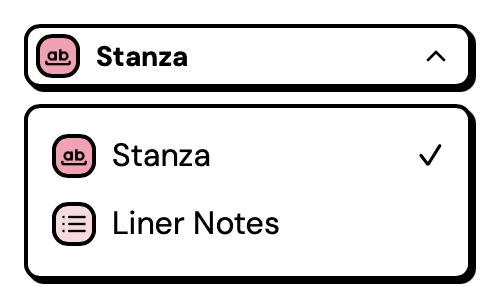
The source picker is on the left side of the toolbar. It shows the name of the plugin that supplied the lyrics on the screen. An icon next to each plugin name shows the type of its lyrics: **Word synced**, **Line synced**, or **Plain**. To see the name of the type, move the pointer over the icon.
The source picker
The source picker lists only the plugins that returned lyrics with text for the current track. To see the lyrics from a different plugin:
1. Open the source picker.
2. Click the name of the plugin.
Your choice applies only to the current track. When the next track starts, Nuclear shows the best result again.
### Change the text size
The **Smaller lyrics** and **Larger lyrics** buttons change the size of the lyrics text. Three sizes are available. Nuclear remembers the size that you set and uses it for all tracks. It keeps this size after you restart it.
### Enable or disable auto-scroll
The **Auto-scroll** switch appears only for synced lyrics. When auto-scroll is on, the view scrolls to keep the current line near the top of the view. Auto-scroll is on by default. Nuclear remembers your choice for all tracks. For more information, see [Follow the current line](#follow-the-current-line).
### Fix the timing of synced lyrics
Sometimes synced lyrics are a little early or late compared to the audio. The offset control fixes this. It appears only for synced lyrics.
The offset control has two buttons and a value between them:
* If the lyrics are late compared to the voice, click **Show lyrics earlier** (the minus button).
* If the lyrics are early compared to the voice, click **Show lyrics later** (the plus button).
Each click moves the lyrics by 0.1 seconds. The value shows the current offset in seconds, for example **-0.3 s**.
The offset applies only to the current track. When the next track starts, the offset returns to zero.
## Synced lyrics
### The highlighted line
Nuclear highlights the current line. Lines that the singer already sang are dimmer than the lines that come next. In line-synced lyrics, a bar appears under the current line. In word-synced lyrics, a bar fills under each word of the current line while the singer sings that word.
Synced lyrics don't show the headers of the lyrics parts. Only plain lyrics show these headers.
### Jump to a line
Click a line to jump to the start of that line in the track. If you changed the offset, Nuclear adds the offset to the jump. Thus Nuclear highlights the line that you clicked when playback continues.
### Instrumental breaks
When no one sings for 5 seconds or more, Nuclear shows an instrumental break between the two lines. The break is three dots. The dots fill one after the other while the break plays. When the next line starts, all three dots are full.
If the singer starts 5 seconds or more after the start of the track, Nuclear also shows a break before the first line.
An instrumental break
### Follow the current line
When auto-scroll is on, the view scrolls to the current line each time a new line starts. The view also scrolls to the current line when you enable auto-scroll.
When auto-scroll is off, the view doesn't scroll by itself. You can scroll up or down, and the view stays where you scrolled it.
When the current line isn't on the screen, a **Current line** button appears at the bottom of the view. The arrow on the button points up or down, in the direction of the current line. Click the button to scroll to the current line. The button also appears when auto-scroll is on and you scroll away from the current line.
## Furigana, translations, and background vocals
Some plugins supply more than the text of the lyrics. Nuclear shows these additional parts in plain lyrics and in synced lyrics:
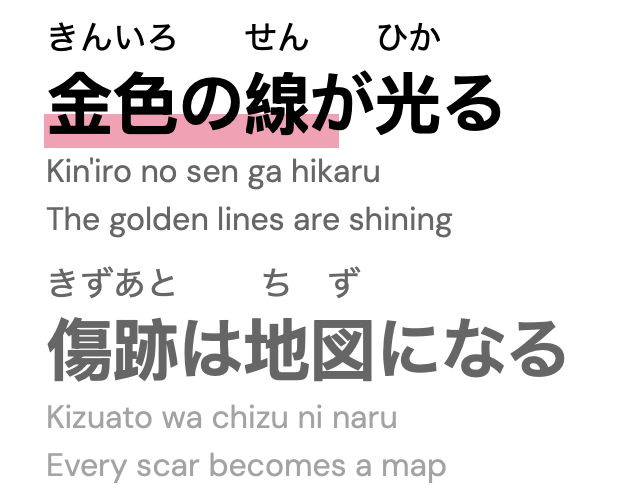
* Furigana are the small reading aids for Japanese characters. They appear above their characters. Other reading aids, such as pinyin for Chinese, appear in the same position.
* Translations and romanizations appear below the line, in smaller text.
* Background vocals appear in parentheses after the line, in italics.
Furigana, a romanization, and a translation
## When the view shows a message
In these cases, the view shows a message instead of lyrics.
**Nothing is playing.** The queue has no current track. Play a track to see its lyrics.
**No lyrics plugins installed.** No lyrics plugin is installed. Click **Browse lyrics plugins** to open the plugin store. Install a lyrics plugin from the store.
While Nuclear waits for your lyrics plugins, the view shows gray placeholder lines.
**No lyrics for this track.** None of your lyrics plugins found lyrics for the track. The message shows the names of all your lyrics plugins. If you have only one lyrics plugin, install a second lyrics plugin. Different plugins get their lyrics from different places.
**Instrumental.** The plugins report that the track has no lyrics. No plugin found text for the track.
## Lyrics outside the Lyrics view
Other apps can also get the lyrics of the current track. They can use the HTTP API or the MCP (Model Context Protocol) server. For more information, see [HTTP API](/nuclear/integrations/http-api.md) and [MCP server](/nuclear/integrations/mcp-server.md).