> For the complete documentation index, see [llms.txt](https://docs.nuclearplayer.com/nuclear/llms.txt). Markdown versions of documentation pages are available by appending `.md` to page URLs; this page is available as [Markdown](https://docs.nuclearplayer.com/nuclear/plugins/plugin-store.md).
# Plugin store
Browse, install, and manage plugins from the built-in plugin store.
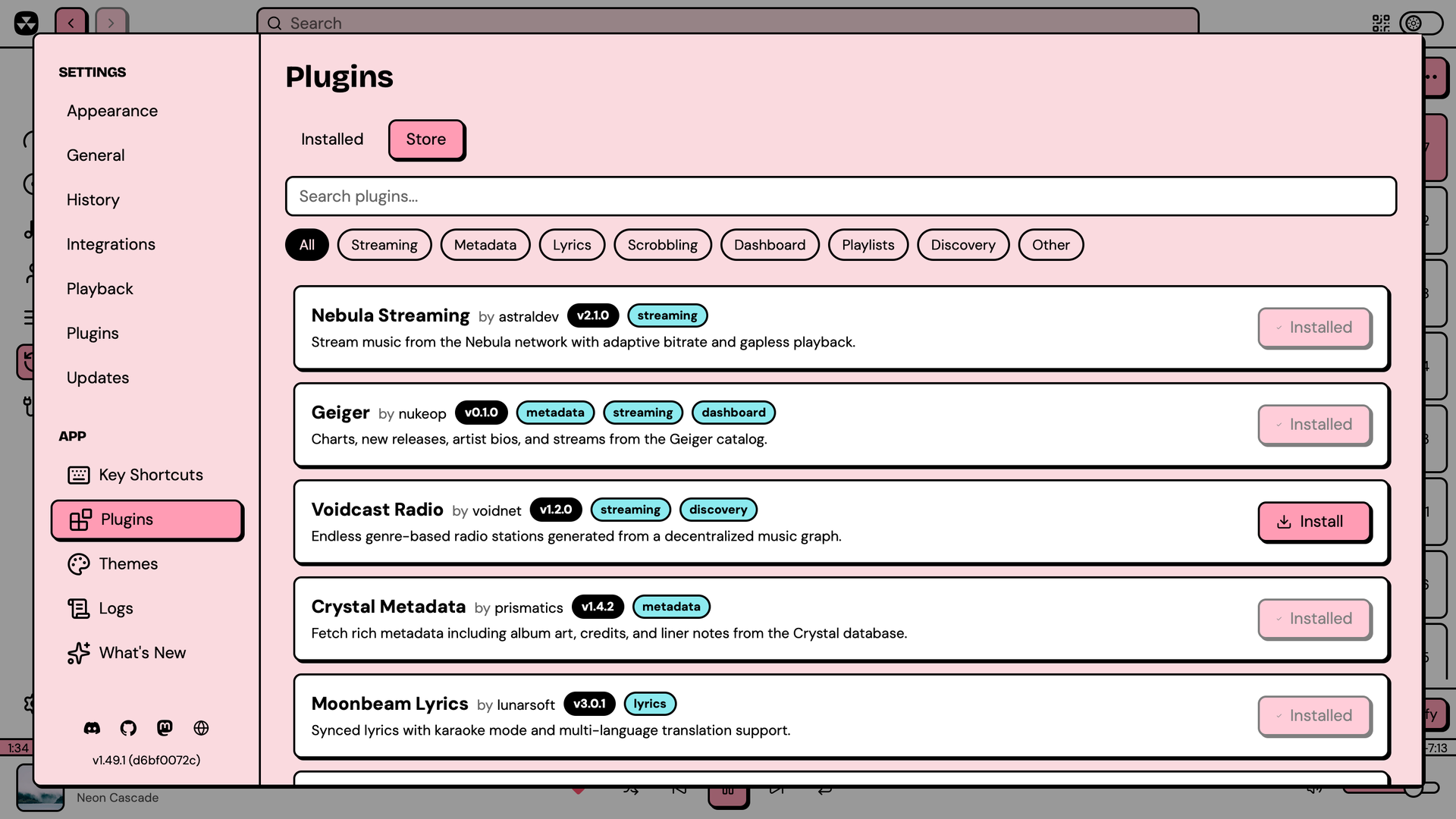
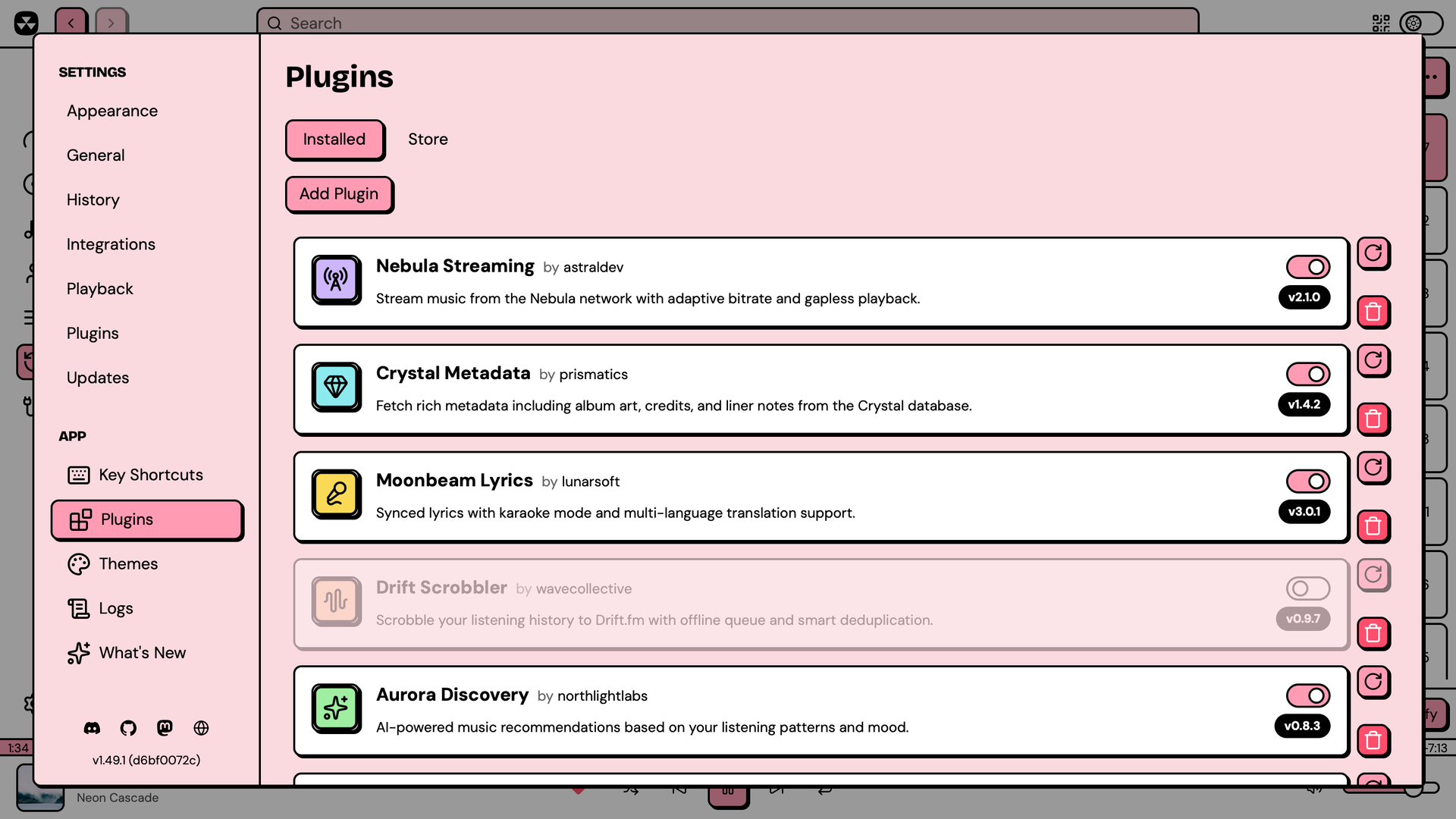
Nuclear has a built-in plugin store. Open Preferences from the sidebar, and go to Plugins, and you'll see two tabs: **Installed** and **Store**.
## Browsing the store
The Store tab lists plugins from the official plugin registry hosted at [github.com/NuclearPlayer/plugin-registry](https://github.com/NuclearPlayer/plugin-registry).
You can search by name, description, or author, and filter by category.
## Installing from the store
Click the Install button on any plugin. Nuclear downloads the latest release from the plugin's GitHub repository, extracts it, and loads it automatically. The button shows a spinner during installation and a checkmark when done.
After installation, the plugin appears in the Installed tab. Toggle it on to enable it.
## Installing manually (dev plugins)
You can also install plugins from a local folder. In the Installed tab, click "Add Plugin" and select a folder containing a plugin (a directory with a `package.json` and an entry file).
Manually installed plugins have one extra feature: a reload button. Click it to re-read the plugin source from the original folder, recompile, and reload. This is useful during development. Store-installed plugins don't support reload; remove and reinstall to get a new version. Store plugins are updated automatically on startup (see Plugin updates below).
## Managing plugins
### Enable and disable
Toggle the switch on any installed plugin. Disabling a plugin disables its functionalities. Toggle it back on to re-enable.
### Remove
Click the remove button to fully uninstall a plugin. This deletes its files and removes it from Nuclear.
### Reload (dev plugins only)
Dev plugins show a reload button that re-reads the source from the original folder and reloads the plugin. Store plugins don't have this option.
## Plugin updates
Nuclear checks for updates when it starts. If a newer version is available in the registry and auto-update is enabled (the default), the update is downloaded and installed automatically. The old version's files remain on disk but the new version takes over.
To disable auto-update, go to Settings and turn off "Auto-update plugins" under the Plugins section.
Dev plugins are never auto-updated. To update a dev plugin, edit the source and click reload.
## Where plugins are stored
Nuclear copies all plugins (both store and dev) into a managed directory inside your [app data folder](/nuclear/misc/platform-specific.md#appdata) at `plugins/{id}/{version}/`. The running code always comes from this managed copy.
For dev plugins, the original source folder is preserved and used when you click reload.