> For the complete documentation index, see [llms.txt](https://docs.nuclearplayer.com/nuclear/llms.txt). Markdown versions of documentation pages are available by appending `.md` to page URLs; this page is available as [Markdown](https://docs.nuclearplayer.com/nuclear/user-manual/getting-started.md).
# Getting started
Install Nuclear and play your first song
Nuclear is a free music player that streams music from the internet. Unlike many music players, Nuclear doesn't come with a built-in music catalog. Instead, plugins provide everything: search results, audio streams, lyrics, recommendations, and more. You pick which plugins to install, and they determine where your music comes from.
This guide walks you through going from a fresh install to playing your first song.
## Install Nuclear
Download and install Nuclear for your platform. See [Installation](/nuclear/user-manual/installation.md) for detailed instructions.
## First launch
When you open Nuclear for the first time, you'll see the Dashboard with a welcome message prompting you to install plugins. Nothing works yet because no plugins are installed.
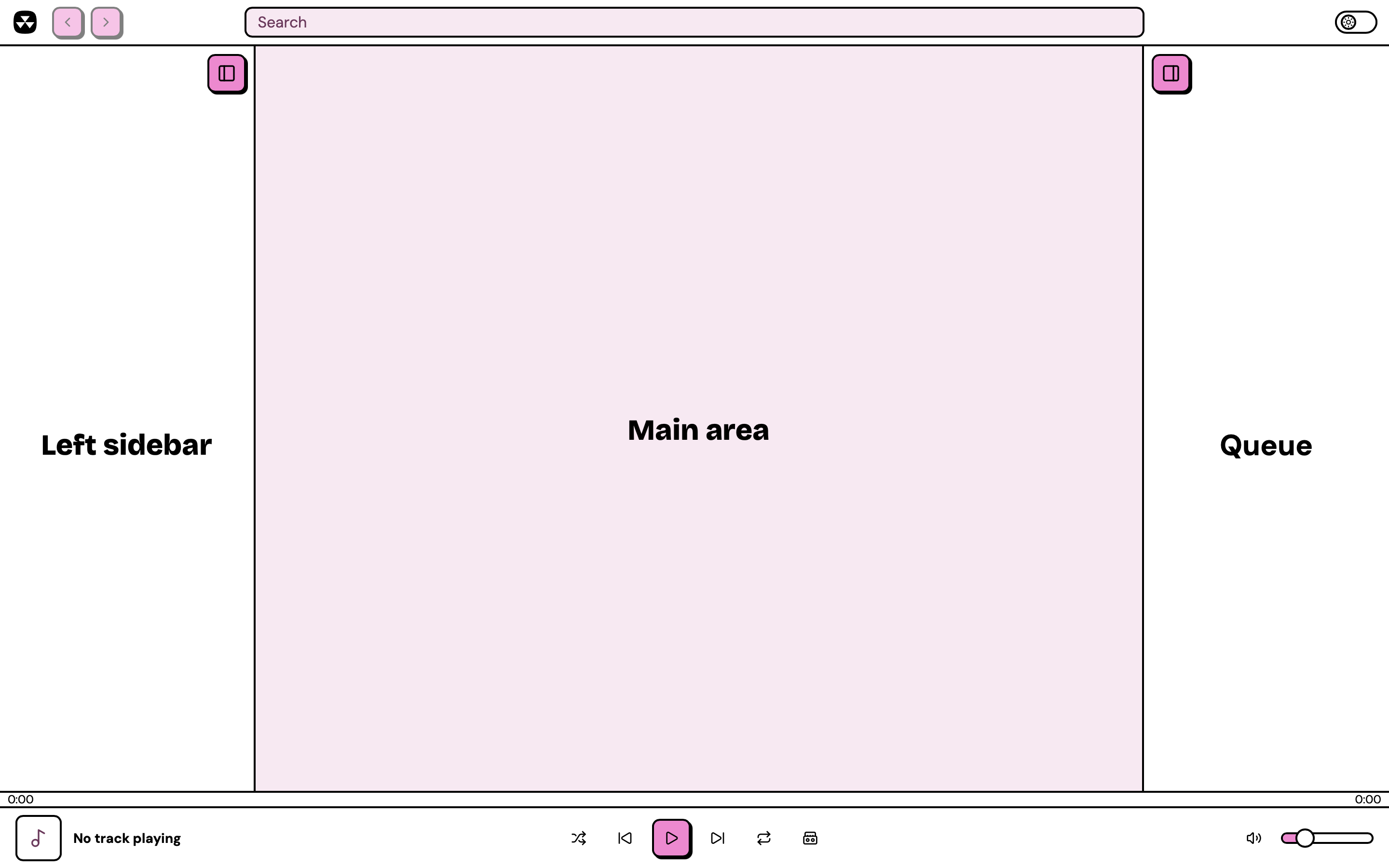
The app layout has five main areas:
* **Top bar** with back/forward navigation and a search box
* **Left sidebar** with navigation (Dashboard, Favorites, Playlists, Sources, Settings)
* **Main area** in the center showing the current view
* **Queue panel** on the right showing upcoming tracks
* **Player bar** at the bottom with playback controls
The Nuclear app layout with the five main areas
## Install your first plugins
Nuclear needs at least two types of plugins to play music:
* A **metadata plugin** to search for artists, albums, and tracks
* A **streaming plugin** to provide the actual audio
Some plugins provide both metadata and streaming in a single package, so you may only need to install one.
To install plugins:
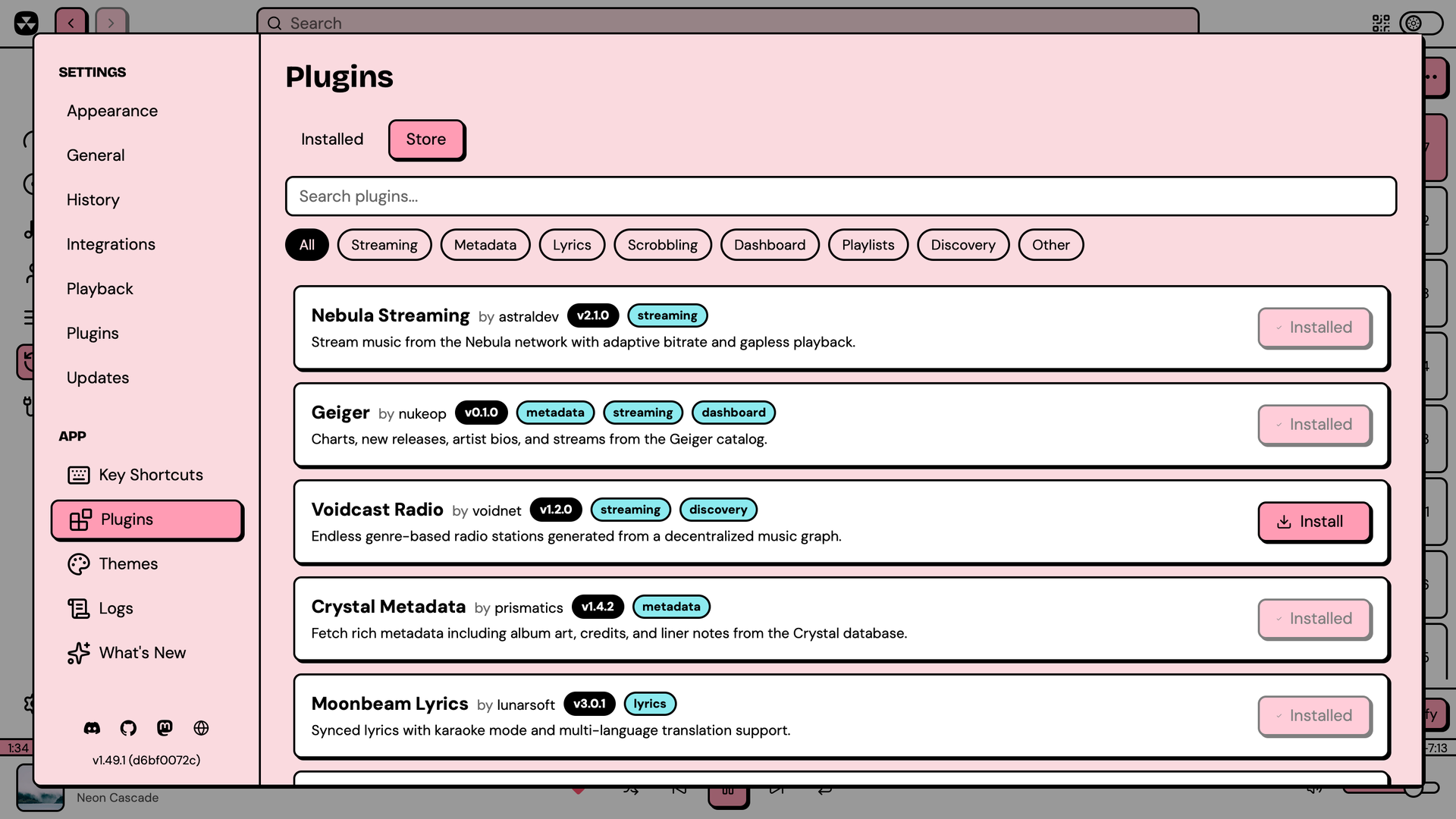
1. Click **Browse plugins** on the Dashboard welcome screen (or open Settings and go to the Plugins tab)
2. Switch to the **Store** sub-tab
3. Find a metadata plugin and click **Install**
4. Find a streaming plugin and click **Install** (or a plugin that provides both)
You can filter by category (Streaming, Metadata, Lyrics, etc.) and search by name. Installed plugins activate immediately.
The plugin store
While you're in the store, consider installing a **dashboard plugin** too. Dashboard plugins populate the home screen with top tracks, new releases, and recommendations so you have something to browse when you open Nuclear.
## Search for music
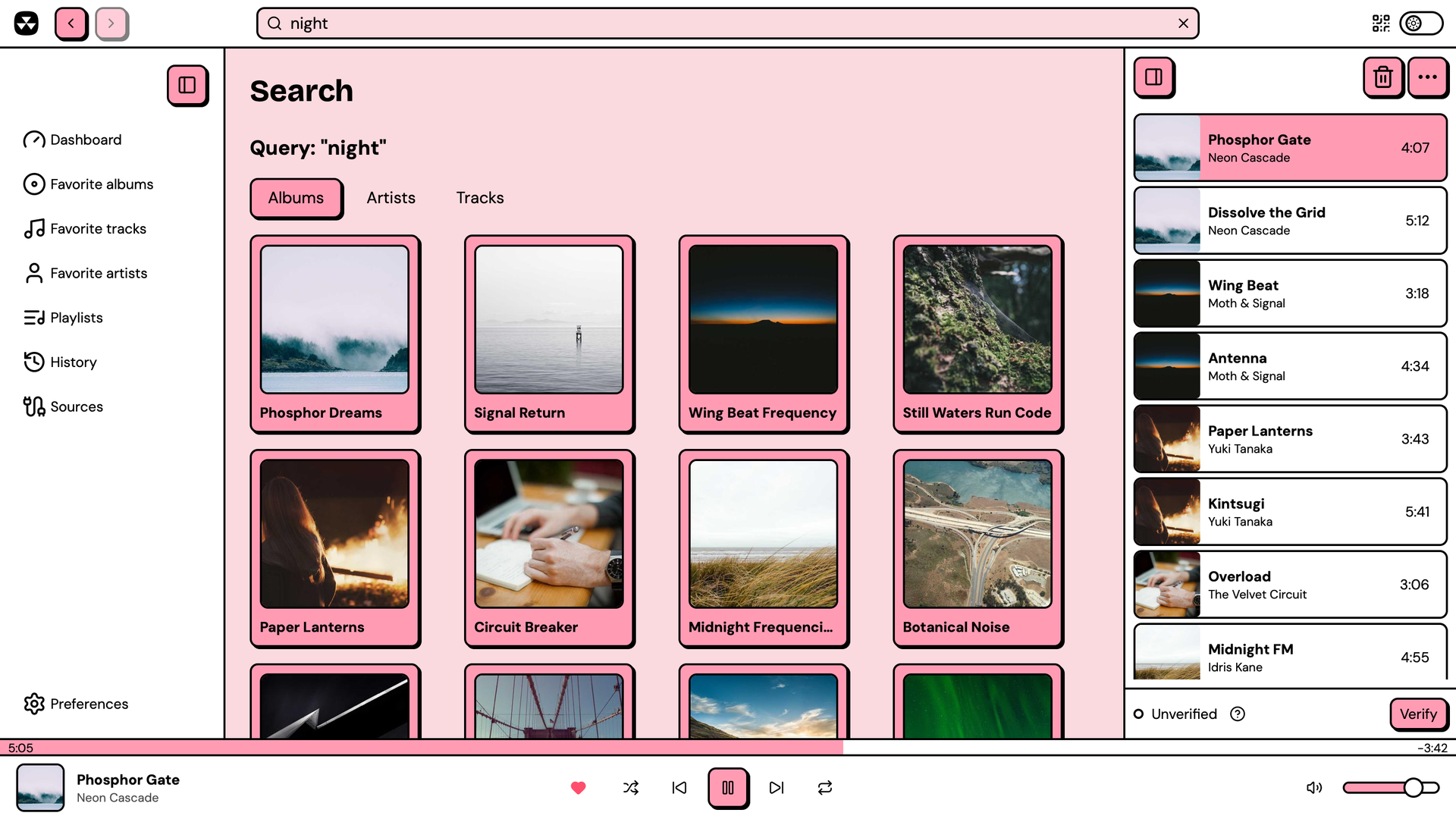
With your plugins installed, type an artist or song name in the search box at the top of the window and press Enter.
Results appear in tabs (Albums, Artists, Tracks) depending on what the metadata plugin found. Click an album to see its tracklist, or go to the Tracks tab to see individual songs.
Search results with the Albums tab active
## Play a track
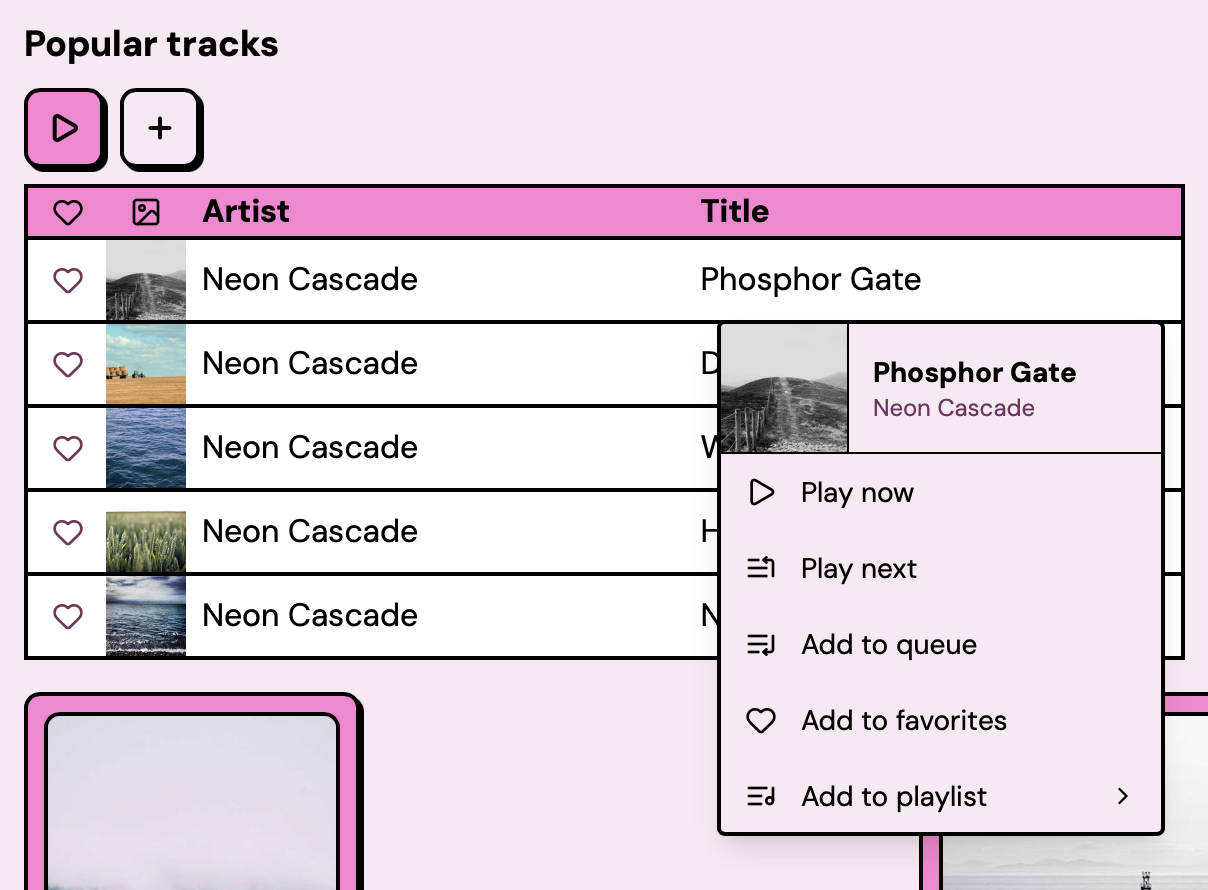
Each track in a list has a **+** button that adds it to the queue. You can also click the **three-dot menu** (⋮) on a track for more options:
* **Play now**: clears the queue and plays this track immediately
* **Play next**: inserts the track after the currently playing one
* **Add to queue**: appends the track to the end of the queue
* **Add to favorites**: saves the track to your favorites
* **Add to playlist**: adds the track to one of your playlists
The track context menu
The player bar at the bottom shows the current track with album art, playback controls, a seek bar, and volume. The queue panel on the right shows what's coming up next. You can drag tracks in the queue to reorder them.
## Choose your sources
If you have multiple metadata or streaming plugins installed, you can pick which one is active. Open the **Sources** view from the left sidebar to see all available providers grouped by type:
* **Metadata**: where search results and artist/album info come from
* **Streaming**: where audio streams come from
* **Discovery**: where track recommendations come from (optional, used by the auto-discovery feature)
Select your preferred provider from each dropdown.
## Next steps
Now that you can search and play music, you might want to:
* **Save favorites**: use the three-dot menu on tracks, albums, or artists to add them to favorites
* **Create playlists**: go to the Playlists view in the sidebar to organize your music
* **Customize the look**: open Settings and browse the Themes tab, or check the [Themes documentation](/nuclear/theming/themes.md)
* **Explore more plugins**: the plugin store has plugins for lyrics, scrobbling, dashboard widgets, and more
* **Set up discovery**: install a discovery plugin and click the boombox icon in the player bar to get automatic recommendations. Discovery is optional and requires a discovery provider plugin. See [Music discovery](/nuclear/misc/discovery.md) for details.