> For the complete documentation index, see [llms.txt](https://docs.nuclearplayer.com/nuclear/llms.txt). Markdown versions of documentation pages are available by appending `.md` to page URLs; this page is available as [Markdown](https://docs.nuclearplayer.com/nuclear/user-manual/remote-control.md).
# Remote control
Control Nuclear from your phone or any other device on your network.
Nuclear Jam turns any device with a web browser into a remote for Nuclear. Pull out your phone, scan a QR code, and you can control playback and see the queue. Handy for parties, cooking, your housemates, and so on.
How does it work? Nuclear can start a small web server that can be accessed on your local network. Your phone (or other devices) connects to your computer directly - no data ever leaves your grasp.
## Enable Nuclear Jam
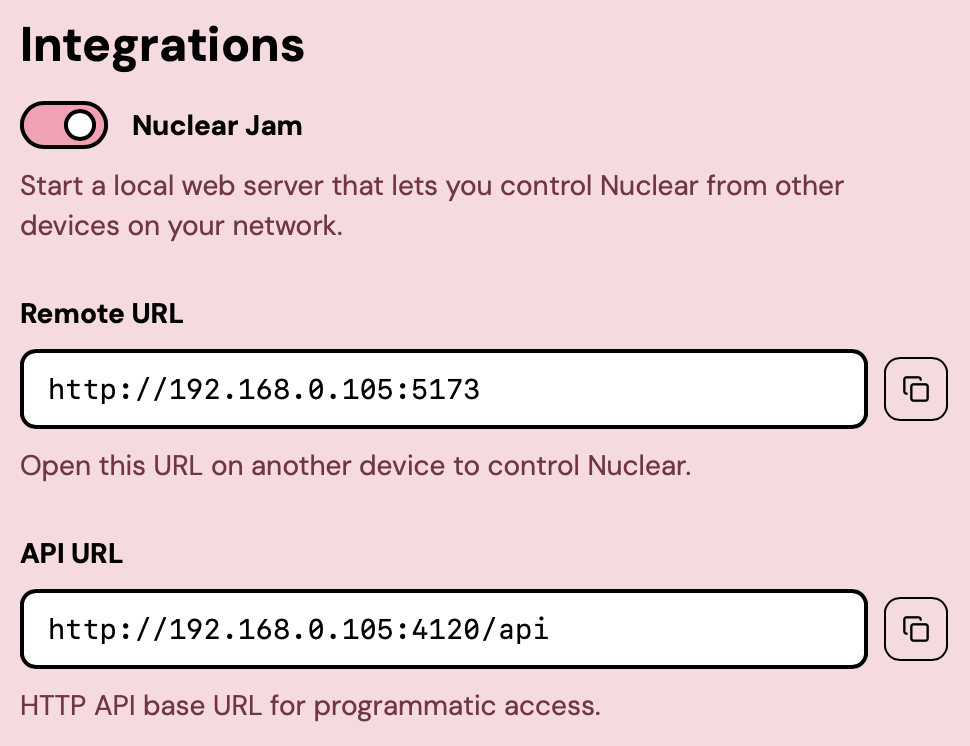
1. Open Nuclear, then go to Settings, then Integrations.
2. Toggle **Nuclear Jam** on.
3. Two read-only fields appear below the toggle: **Remote URL** and **API URL**. The Remote URL is what you open in a browser to use the remote. The API URL is for scripts and other integrations. See [HTTP API](/nuclear/integrations/http-api.md) if you want to use it. Intended for programmers.
Enabling Nuclear Jam in Settings
The server binds to your LAN address on a port in the 4120-4129 range. If your computer's address is `192.168.1.42`, the Remote URL looks like `http://192.168.1.42:4120`.
{% hint style="info" %}
Nuclear Jam only listens on your local network. Devices need to be on the same Wi-Fi (or wired LAN) to connect.
{% endhint %}
## Connect from your phone
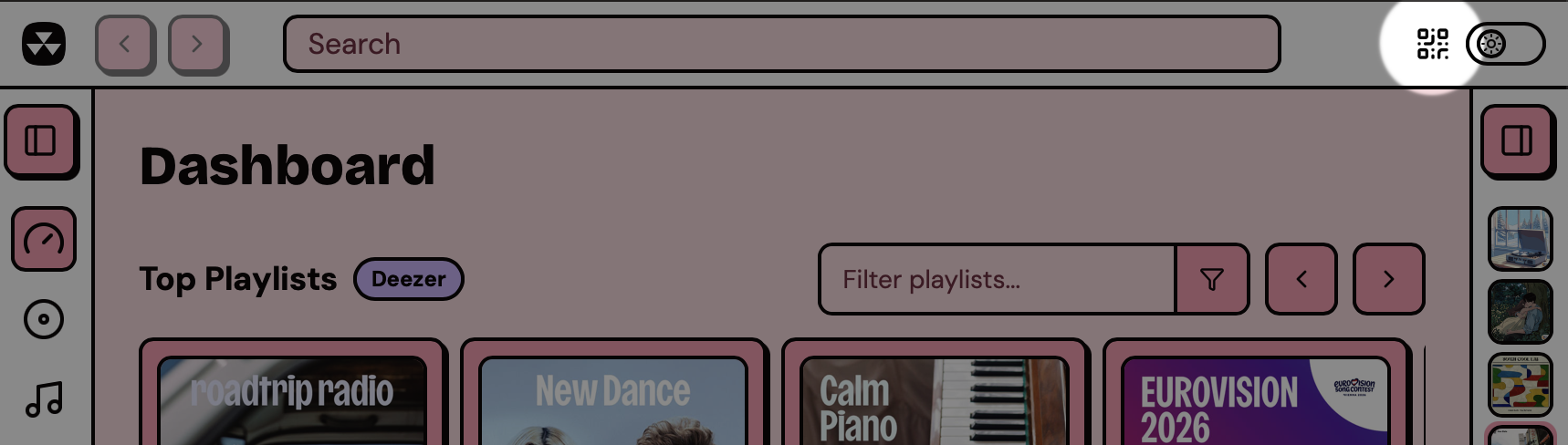
Once Jam is on, a small QR code icon appears in the top bar of Nuclear, next to the theme switcher.
The QR code button in the top bar
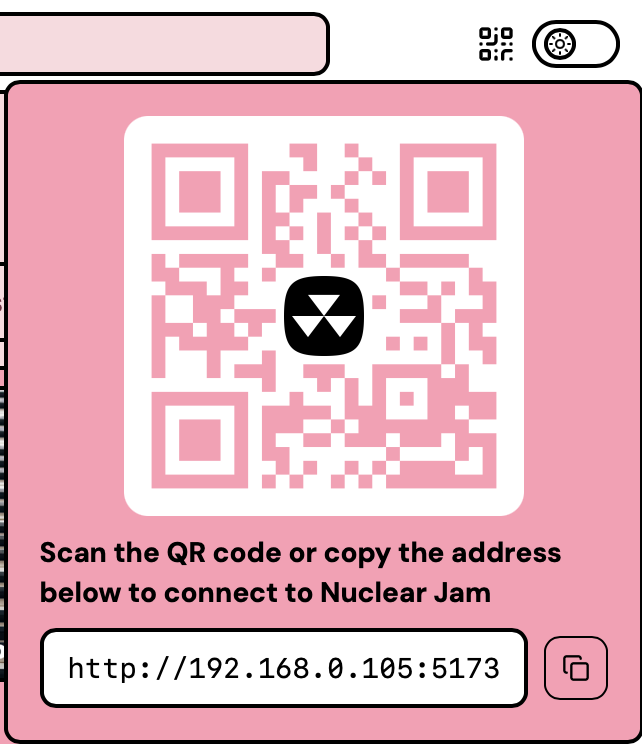
Click it to open a popover with the QR code and the Remote URL.
The QR code popover
Scan the QR with your phone's camera, or just type the Remote URL into a browser on any device on the same network to load Nuclear Jam.
## What the remote does
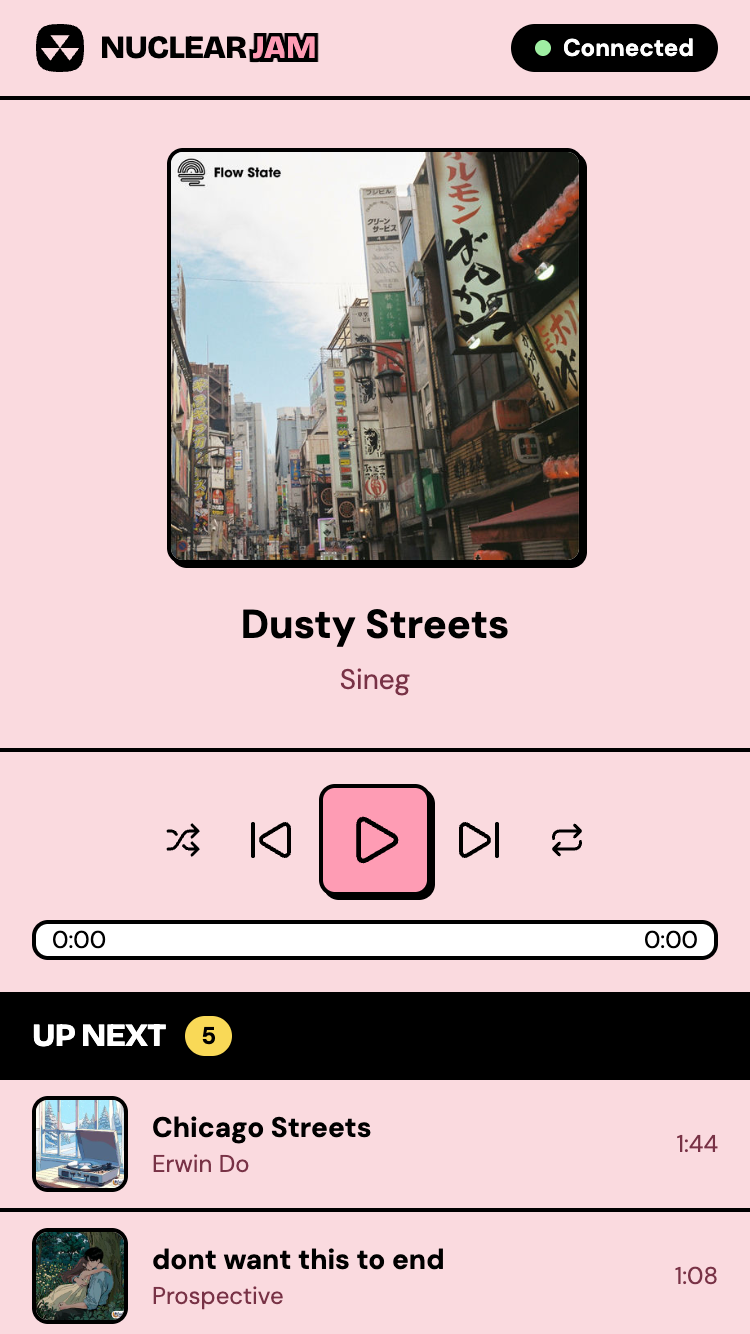
The remote UI is a single screen with four sections: a search bar in the header, now playing, controls, and the queue.
Nuclear Jam on a phone
* **Now playing** at the top, with cover art, track title, and artist.
* **Controls** in the middle: previous, play/pause, next, plus a seek bar, shuffle, repeat, and discovery toggle.
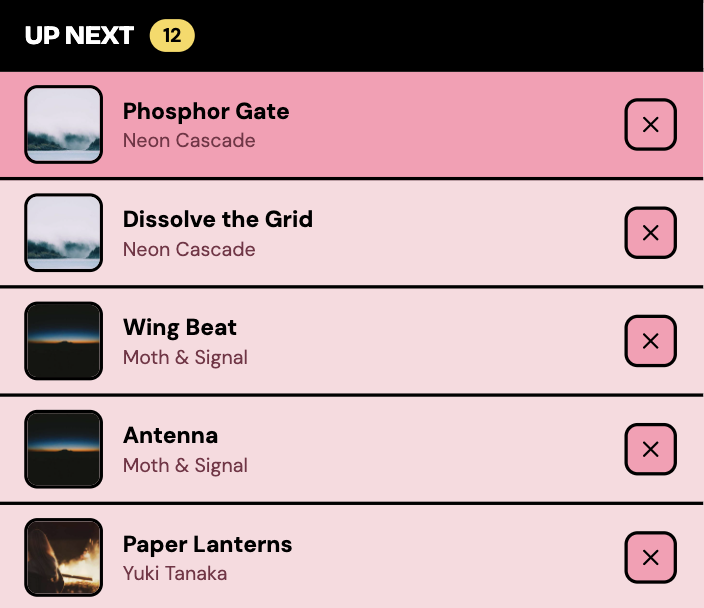
* **Queue** at the bottom, with the currently playing track highlighted. Each item has an X button to remove it from the queue.
A badge in the header shows the connection status: **Connecting**, **Connected**, **Reconnecting**, or **Disconnected**.
Anything you do on the remote happens in Nuclear immediately, and vice versa: skipping a track on the desktop updates every connected remote. Multiple devices can connect at the same time and they all stay in sync.
### Searching for music
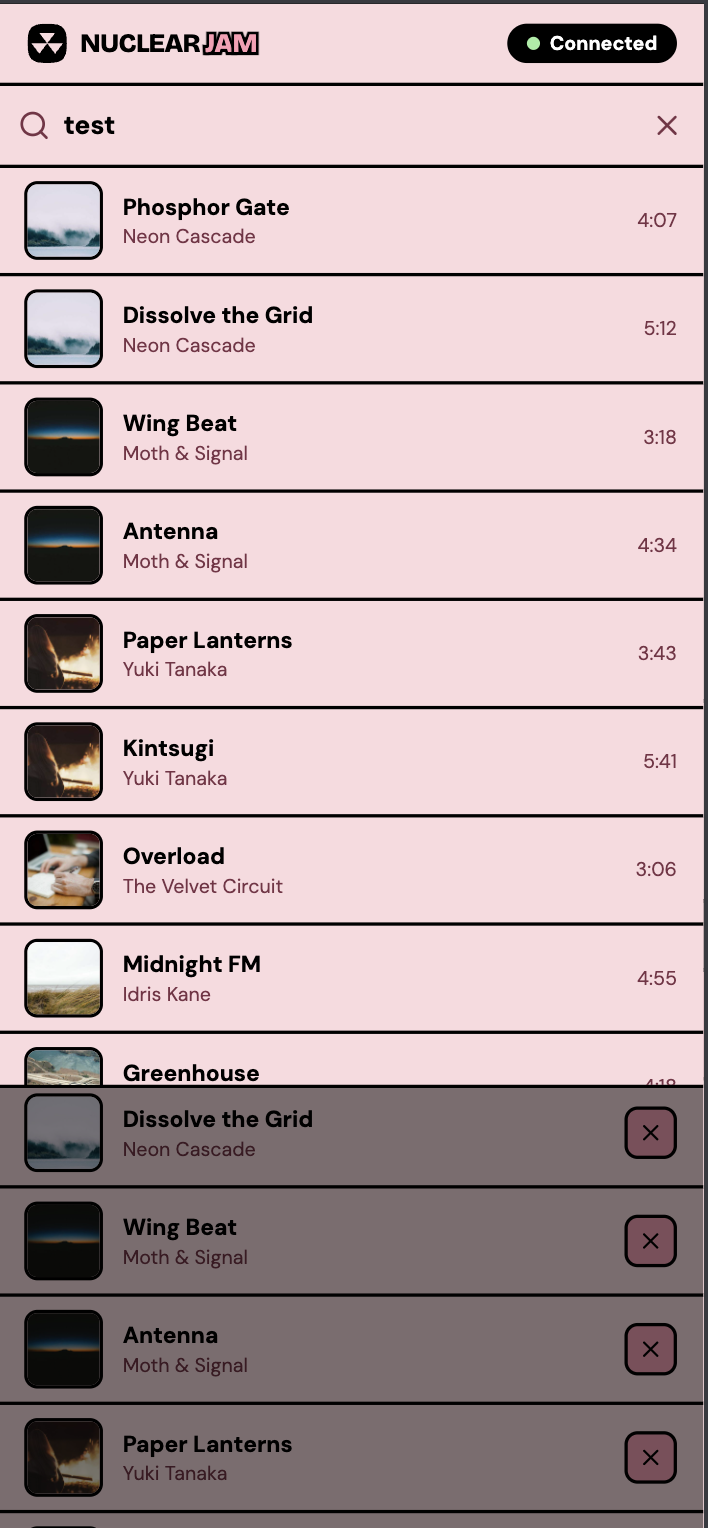
Use the search bar at the top to enter your query. A drawer will slide down with matching tracks.
Searching for tracks from the remote
Click (or tap) a track to add it to the queue. The drawer will close after adding. If the queue was empty, playback starts automatically.
### Removing tracks from the queue
Each queue item shows an X button on the right side. Tap it to remove that track from the queue.